
In this topic: Browse all Getting Started articles
AI Music TutorialsPublish a Suno Album: Playlist Convert and Checks
Publishing a Suno album is not “another playlist.” It means sequencing your own finished tracks as an LP or EP, locking artwork, then hitting Publish Album so followers get a notification and the release appears on your profile. Albums shipped on 5 October 2026. This guide walks the path: pick the right container → create or convert from a Playlist → add and order songs → run the pre-publish check.
Steps follow Suno’s Albums release note, How to Create an Album, Migrating a Playlist to an Album, Publishing & Sharing your Album, and the Albums FAQ. Labels may shift. suno.skin is an independent explainer, not Suno, Inc. DSP distribution is still covered in TuneCore / Believe distribution—this article only covers in-product album publishing.
Album vs Playlist: which container
Suno’s FAQ is blunt: a Playlist can mix songs from multiple creators; an Album is a body of work tied to you alone—only songs you created. LP (full-length) and EP (shorter release) work the same on Suno; the type is just a label. Choose Album when you want a public release, follower push, and profile showcase. Keep a Playlist while you are still auditioning takes or collecting other artists’ tracks.
- Use Album: finished tracks under one theme, follower notify, shared cover and order
- Use Playlist: experiments, multi-artist mixes, sets you are not ready to publish as a whole
- Use a shareable workspace (Pro/Premier): invite named collaborators to a shortlist—not a public release; do not confuse it with Album
- Album is not TuneCore shipping: after the in-app release, DSP still follows distribution and download-limit guides
Create an Album or Make Album from Playlist
Two entry points. New album: Library → Albums → + New Album → cover (upload or create), title, type (LP/EP), description → Create album. Later, use Edit details in the album action menu. From a playlist: open that Playlist’s … menu and choose Make Album from Playlist. Officially the original playlist stays put—you keep both; only songs you created can enter the Album, so other creators’ tracks will not migrate.
- Write one sentence for why these tracks belong together—use it to drop great takes that belong to another project
- After Make Album from Playlist, confirm every track on the new Album page is yours
- For feedback before a public drop, share the draft Album link without Publish
Add songs, order, and album cover
On the Album page, tap + Add songs and pick from your songs or playlists; playlist browsing still only shows tracks you created. Albums may include published and unpublished songs. Drag to set order; you can add, remove, reorder, and edit title, description, or artwork even after publishing. On the publish confirmation screen, Use Album cover for all songs applies album artwork to every track; with that toggle on, songs added later to a published album also pick up the album cover. Remove a track that used the album cover and its artwork reverts to the song’s original art.
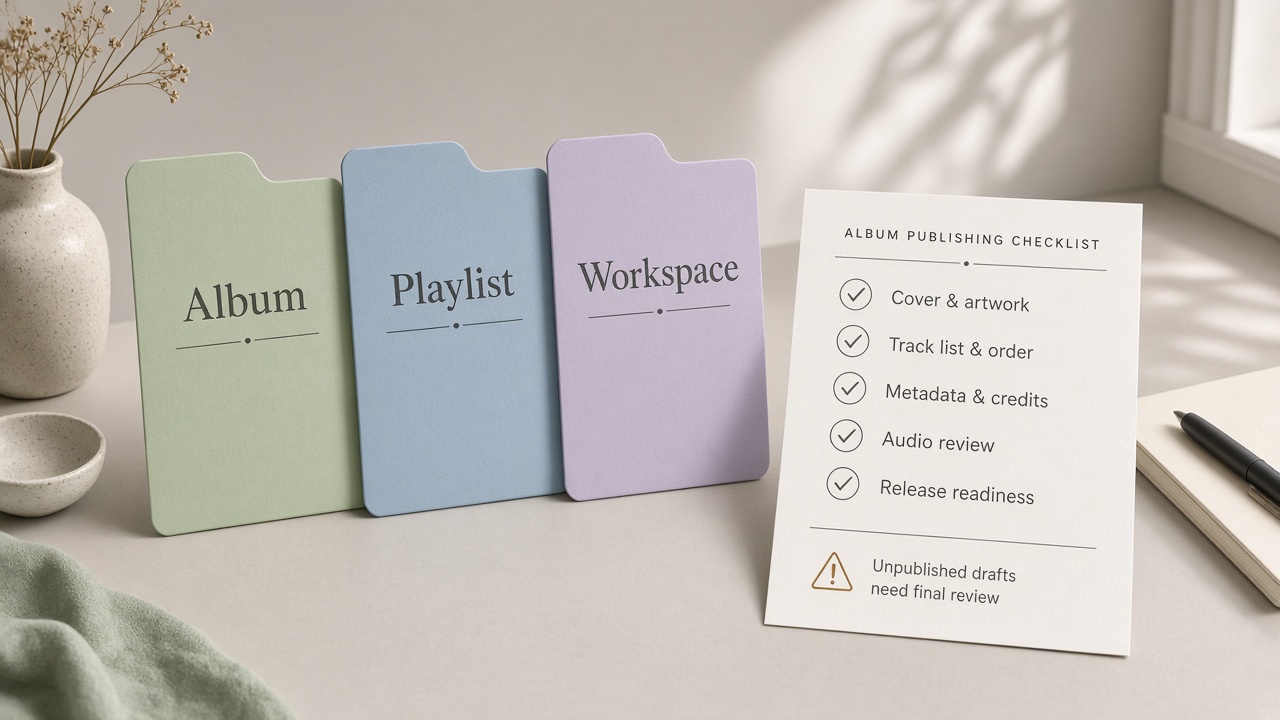
Checks before Publish Album
The add-songs help article states the hard edge: once the Album is published, every included song becomes published and public. That is not “album page only while drafts stay private”—practice takes, wrong-lyric versions, and unnamed drafts still in the list go public together. Path: Album page or … → Publish Album → review details (including cover toggle) → confirm Publish. Followers get a push; the album shows on your profile and may appear on the homepage or Explore (Suno says “may,” not a guarantee).
- Audition each version: same-title “final / v2” must match the lyric and ending you intend
- Remove unpublished practice takes you will not make public; keep private shortlists out of the Album via link share or a shareable workspace
- Check title, description, LP/EP label, and cover; decide on Use Album cover for all songs
- Only then Publish; you can still edit order and metadata afterward, but public is already public
- If YouTube or DSP is the goal: album publish ≠ disclosure or commercial clearance—see YouTube monetization disclosure and download limits
After publish: handoff to distribution
A Suno Album solves in-product “body of work + follower notify.” Spotify-class shipping still needs a paid commercial path and distribution partners—see Suno TuneCore distribution and plan gates in Free vs Pro. Model choice does not block creating an album, but it shapes the masters you put in it; compare v6 models guide.
Feature scope and button labels follow Suno’s official Albums help. This site is an independent explainer, not legal advice or official documentation.
Open Suno Albums release noteLock your masters, create a Suno album or finish Make Album from Playlist, clear unpublished drafts, then Publish.
Try Suno music tools
Suno AI Team
AI Music Editor · Suno AI & Text-to-Music
Our editorial team tests Suno AI daily, covering product updates, prompt techniques, and real-world music creation workflows.
Related Articles


Ready to start your AI music creation journey?
🚀 Start Creating Now