
In this topic: Browse all Getting Started articles
AI Music TutorialsSuno Studio Timing: Shift Stretch and Fade Curves
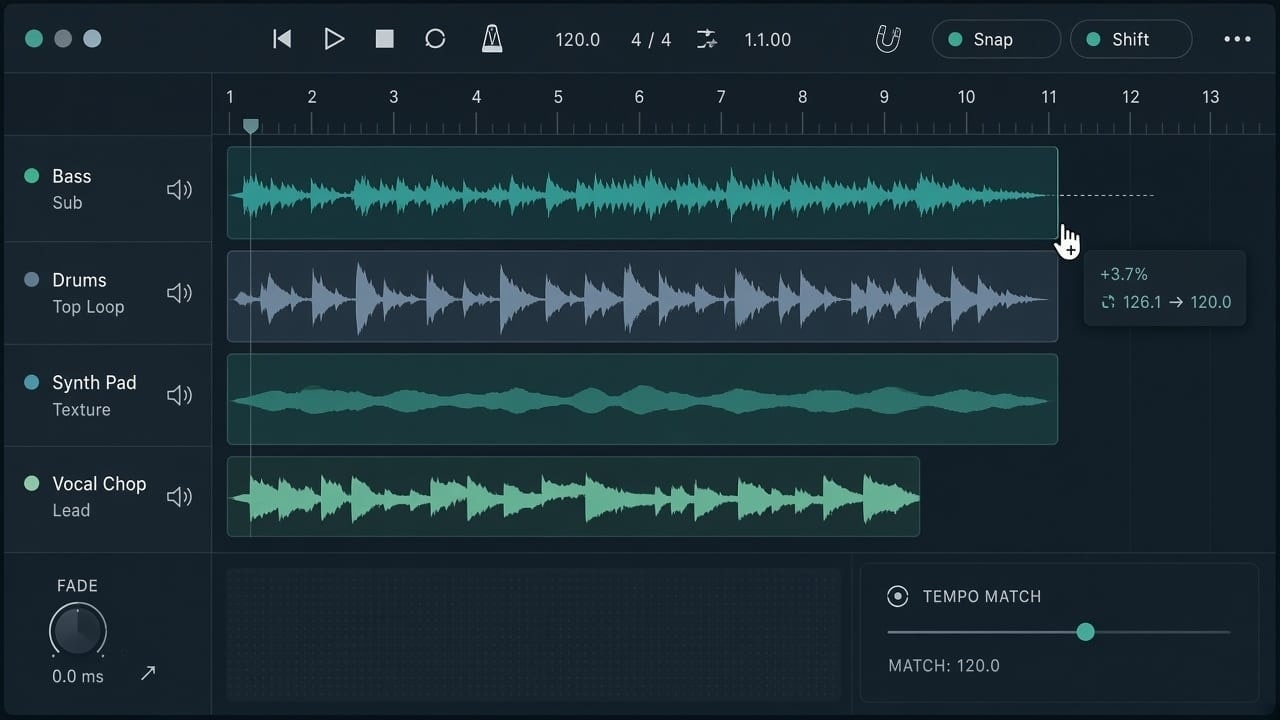
Suno Studio’s 8 October 2026 update targets the edits that burn soundtrack time: new clips that sit slightly ahead of the grid, a cappella vocals that won’t lock to drums, and loops whose BPM doesn’t match the project. Suno shipped better downbeat detection, Shift-drag clip stretching, and shaped fade curves. This post is a diagnose-then-edit playbook—not another Studio 2.0 overview.
Facts follow the official Improvements to Studio note. Studio remains a Premier feature; MIDI, Chat, and uncapped exports are covered in the Studio 2.0 guide. suno.skin is an independent explainer, not Suno, Inc.
Listen at three landmarks: move or stretch?
Pick a diagnosis before you touch the clip. Enable the metronome (Shift-C), solo if needed (Shift-S), and check three spots: your intended first downbeat, a clear middle landmark, and the final target beat. Do not trust the first waveform spike alone—it may be a breath or pickup.
- All three landmarks equally late or early: nudge the clip; do not stretch yet
- Start fits, but middle and end drift further: tempo/duration mismatch → Shift-drag clip stretching
- Start and end fit, one phrase wanders: local issue—don’t yank the whole clip; re-listen that phrase or regenerate locally
- Beats fit but the join clicks or swells: fix the cut and fade, not the BPM
Downbeat detection: fewer manual aligns for vocals
Suno improved beat 1 detection on new clip creation, so clips and takes sit more accurately on the Studio timeline—especially for non-rhythmic material like a cappella. That means less manual lining-up after generate. It does not decide which musical entrance you want: pickups still need your ear.
- After a new generate lands, check whether beat 1 hits the bar you intend
- Still a hair off: nudge first; stretch only when drift grows over time
- Older copy said “timing is still being patched”: this release targets grid lock and vocal cases—it is not a claim that every project auto-perfects
Shift-drag: stretch material to the project tempo
Clip stretching uses Shift plus click-drag on a clip edge to time-stretch automatically—handy for matching samples, found sounds, or phrases pulled from another song to the project tempo without pre-computing percentages in an external DAW. Suno calls it fast; you should still protect the source: duplicate the clip before you pull.
- Keep the original; work on a copy; note source BPM, meter, and intended first downbeat
- Align that downbeat to the bar line first
- Shift-drag the edge so the end meets the target bar; confirm duration changed, not a simple trim
- Re-check middle and final landmarks; smeared kicks or stretched consonants → undo and use a steadier source or fix locally
- For surgical timing, Warp Markers in edit mode still apply (see Suno’s Editing Clips help)—that is a different tool than whole-clip Shift stretch
Self-check math (not a Studio numeric field): a steady 4/4 four-bar loop at 100 BPM is 16 beats ≈ `16 × 60 ÷ 100 = 9.6` seconds; the same 16 beats at 120 BPM ≈ 8 seconds. With pickups or reverb tails, stretch the musical span you hear—do not blindly crush the whole file to eight seconds.
Fade curves: stop papering joins with a straight line
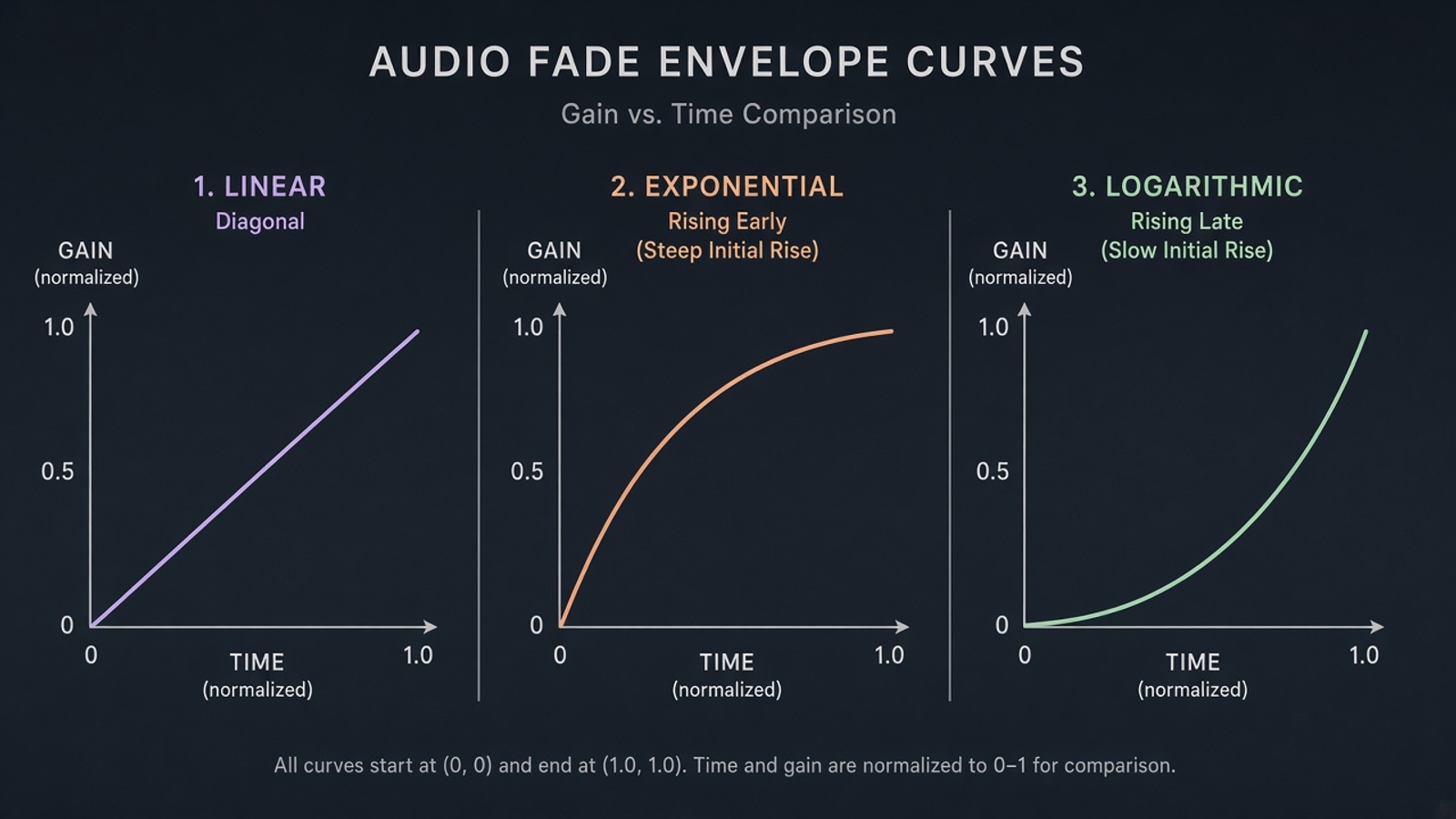
Clip fades used to be linear only. You can now drag the node on the fade handle for exponential or logarithmic shapes. Decide the job first: soften a hard cut, ease a bed in, or let a tail decay. When the join clicks, reshape the fade before you change BPM again.
- Linear: even rise/fall—fine for simple stacks
- Exponential / logarithmic: faster at one end—useful to duck a kick or naturalize a tail
- Short-form hit points: slightly longer fades so the next cut doesn’t chop the ring-out
- Café / podcast beds: slower fades-in so the open doesn’t slam level
Pop-out windows and project habits
The same release lets you pop out the wavetable synth, musical typing keyboard, and expanded plug-in views into floating windows—even onto another monitor. While aligning, keep the timeline on the main screen and the synth on a side display so you don’t break listening by closing panels. Plans and download caps still sit in Free vs Pro and Pro vs Premier—Studio itself remains Premier.
Feature scope follows Suno release notes; UI labels may shift. This site is an independent explainer, not official docs.
Read the official Studio updateOpen a Premier project, check three landmarks, then decide: nudge, clip stretch, or reshape the fade.
Generate and open in Studio
Suno AI Team
AI Music Editor · Suno AI & Text-to-Music
Our editorial team tests Suno AI daily, covering product updates, prompt techniques, and real-world music creation workflows.
Related Articles


Ready to start your AI music creation journey?
🚀 Start Creating Now