
In this topic: Browse all Getting Started articles
AI Music TutorialsSuno MIDI Upload: Start Songs from Your Melody in Create
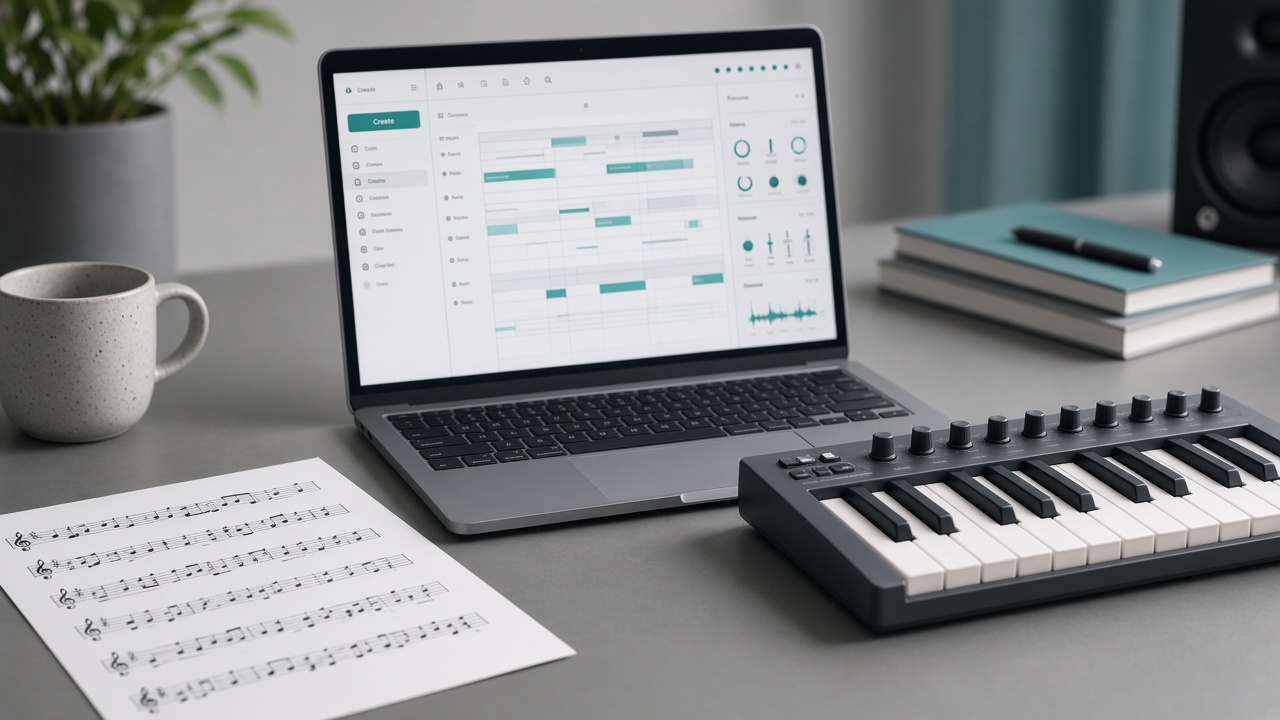
Suno MIDI upload is live on the Suno AI Create page: drop a `.mid` or `.midi` file from your DAW or score into Simple mode, add a short prompt, and generate a full arrangement from your note skeleton. This guide covers the upload steps, three prompt patterns (exact notes / motif / re-orchestration), and how Create MIDI differs from Studio MIDI and audio Remix.
Facts follow Suno’s Start Songs with MIDI post (4 Nov 2026) and the Help Center article Using MIDI files in Create. UI labels may shift. suno.skin is an independent explainer, not Suno, Inc.
What MIDI upload solves
Text prompts are strong on mood and style, but weak at locking one specific melody. MIDI carries no audio—only pitch, timing, and velocity. After upload, your file supplies the skeleton; the prompt supplies timbre and arrangement. That is different from Remix / Cover with WAV/MP3: those reshape recorded sound, while MIDI lets you keep your written melody or chords when you change instruments.
- Fit: melody or chord drafts already in a DAW that you want to hear fully arranged
- Fit: scores exported as MIDI to audition orchestra, choir, or string-quartet versions
- Fit: old synth lines you want replayed “exactly as written” on new instruments
- Poor fit: Free plan, mobile apps, or expecting Custom Mode / flagship v6 on day one
How to upload MIDI in Create
Help Center scope: desktop web only, Pro or Premier, in Simple mode. Accepted formats: `.mid` and `.midi`.
- Open Create and stay in Simple mode
- Drag the MIDI file onto the form, or pick MIDI from the + / attachment menu
- Describe genre, instruments, mood, and energy—and say whether to follow notes exactly or treat them as a motif
- Hit Create; generate a few takes from the same file before you pick a keeper (launch model variance is higher)
At launch, MIDI runs on Simple Create + v6-wild, with more capability planned later. v6-wild is more exploratory than flagship v6, so write hard constraints when you need fidelity—and pair with the v6 models guide.
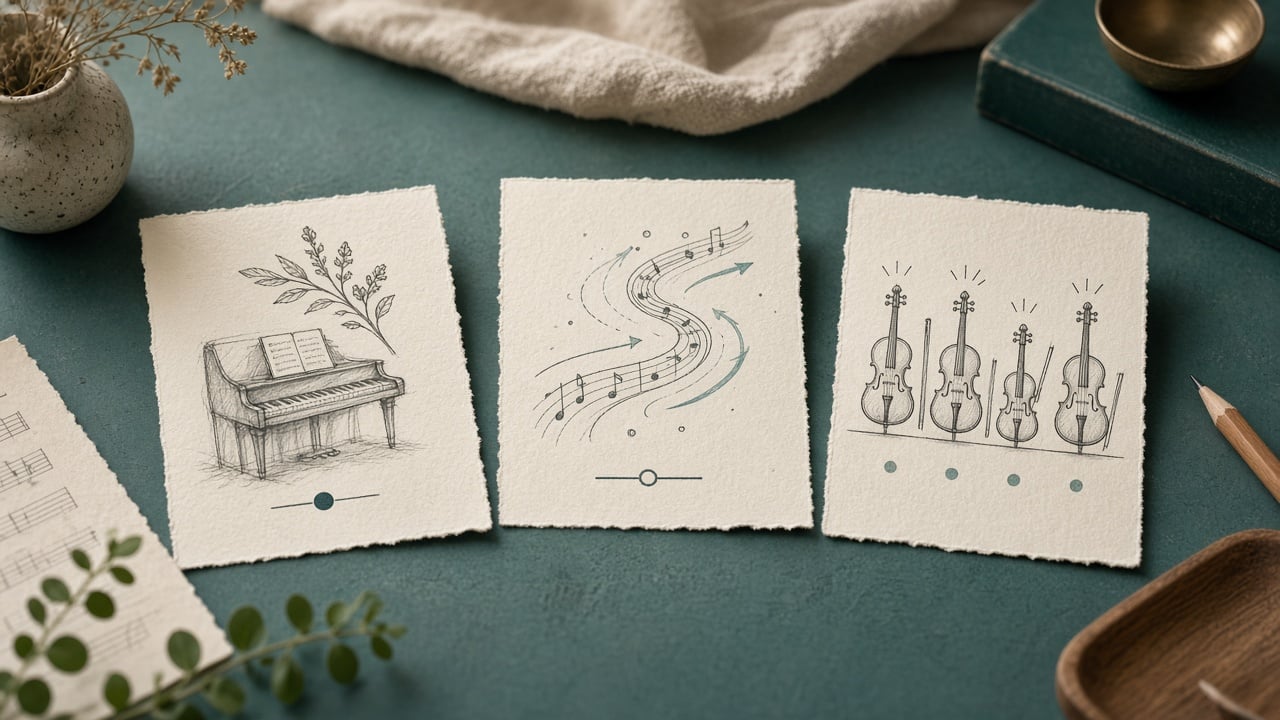
Three prompt patterns: exact, motif, re-orchestrate
MIDI sets the bones; your prompt sets how literally Suno should use them. Decide first whether you are auditioning a finished part or only shipping a hook to develop.
- Exact: Play the notes and chord progressions exactly as written. Arrange for solo piano and soft strings, warm and slow.
- Motif: Use the top-line melody as a motif only. Develop a full indie-pop song with a bridge; live drums, bright guitars.
- Re-orchestrate: Keep the same melody and rhythm, but arrange for a string quartet; intimate, dry room, no drums.
- Official direction examples: full orchestra / gospel choir with piano / string quartet—rename instruments for your scene
Practical prep: trim to a clear 8–16 bar idea and remove empty tracks; name instruments in the prompt and describe feel (late-night brushed drums) rather than only a genre label. If results drift, add exactly as written; if they feel stiff, switch to use as a motif and add structure plus mood.
Create MIDI vs Studio MIDI vs Remix audio
Keep three lanes separate so you open the right surface.
- Create MIDI upload (this guide): Pro/Premier, desktop web, Simple + v6-wild; one-shot song from note data
- Studio MIDI: Premier timeline import/record/piano-roll edits, then generate or export—see Suno Studio 2.0
- Remix / Cover audio: upload WAV/MP3 to reshape recorded sound, not pure note instructions
- Plan split: Create MIDI works on Pro; the full Studio MIDI workstation still leans Premier—see Free vs Pro and Pro vs Premier
Launch limits and common pitfalls
- Desktop web only; no iOS/Android Create MIDI entry yet
- Launch path is not Custom Mode; lyrics may need another workflow until capabilities expand
- No published separate file-size/duration cap or MIDI surcharge; generations still spend plan credits
- Free accounts stay on v6-mini and cannot use this feature—do not expect a free MIDI upload path
- If takes wander: generate more versions, or quantize/retune in Studio before returning to Create
Feature scope, plans, and models follow Suno’s official blog and Help Center. This site is an independent explainer—not legal advice or official docs.
Open official MIDI postExport a clean melody MIDI, try one exact-notes take and one motif take in Create, then decide whether Studio polish is worth it.
Try Suno Create
Suno AI Team
AI Music Editor · Suno AI & Text-to-Music
Our editorial team tests Suno AI daily, covering product updates, prompt techniques, and real-world music creation workflows.
Related Articles


aboutPage.cta.text
aboutPage.cta.button