
In this topic: Browse all Getting Started articles
AI Music TutorialsSuno v6 Movement-First Music: Rehearsal Clip to Studio
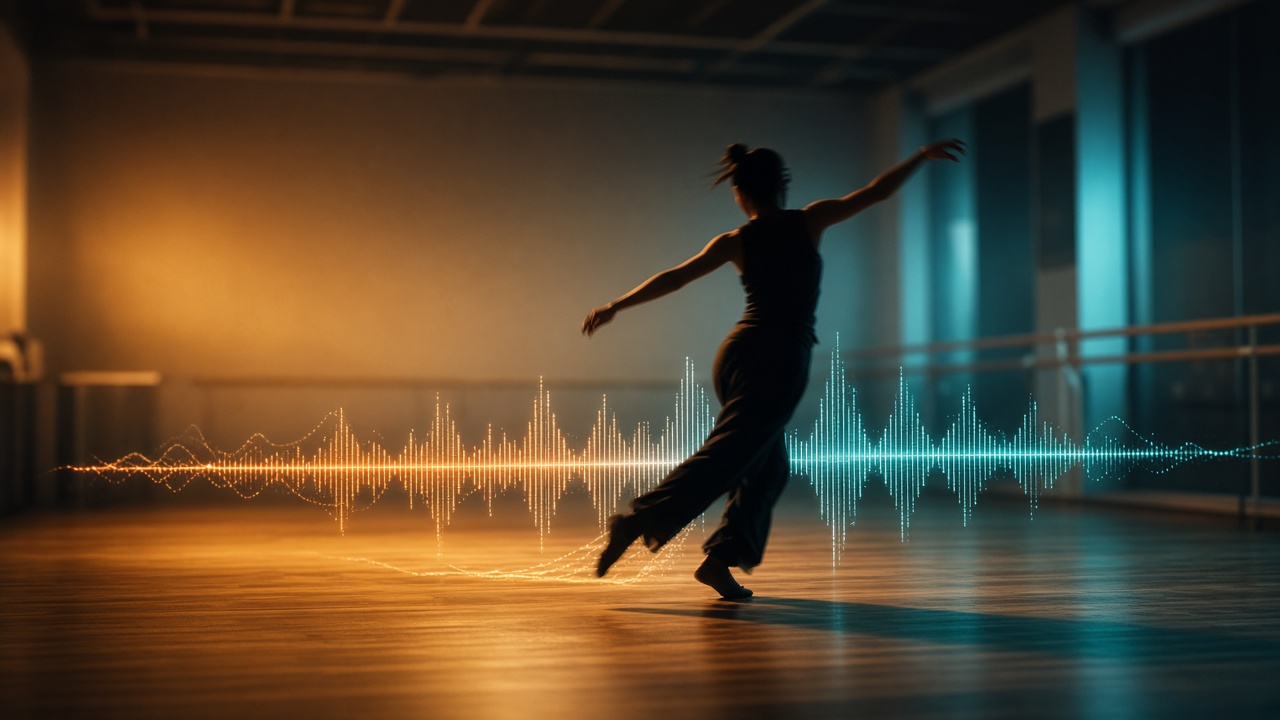
Suno v6 movement-to-music is for creators who already have the body language. Suno AI can take a rehearsal clip, a motion still, and text together: video owns pulse and punch; text locks genre, BPM, and whether vocals belong. Suno’s 13 October 2026 behind-the-scenes case starts from movement, generates with v6, then finishes in Studio 2.0—it does not render a finished platform MV for you.
This guide covers only that pipeline: how to crop a rehearsal take, how to write a movement-first brief, and when to open Studio. Multimodal basics live in the image/video-to-music guide; model picking in the v6 launch guide; Studio features in the Studio 2.0 guide. Facts follow Behind the Scenes and the v6 FAQ.
Movement first vs drop-any-video
Short-form scoring often starts from mood and finds a bed that covers the cut. Dance, fitness choreography, and stage rehearsal flip that: steps, holds, and formations are already fixed, so the track must land on counts and leave air. A chatting walk-and-talk only gives vibe; a clear 3-8 second motion hit plus "video owns rhythm; style follows text" is movement-first.
- Good fit: choreography tryouts, rehearsal sync, motion short-form beds, openers that need a hard stop
- Poor fit: expecting Suno to auto-edit an MV with captions and platform export—that still needs an editor
- Unlike store stills: the primary anchor is motion energy and downbeats, not color temperature
- For loopable workout drums, also see the fitness BGM guide
Crop the rehearsal clip and write the brief
Attach less, attach the right seconds. During scouting, prefer one clear motion segment; stacking images and video usually costs more credits than text alone. Spell out the handoff in text or the model will invent a genre from wardrobe or backdrop.
- Crop 3-8 seconds where footfalls or turns read cleanly; avoid face close-ups stealing the brief
- Anchor line: "Use this rehearsal clip for pulse and accents only—do not guess genre from the video"
- Constraints: BPM or countable pulse, instrumental vs vocals, soft first 8 counts, drums into the turn, hard stop
- Scout with v6-mini; hunt texture with v6-wild; lock the synced take on v6
- Audition 2-4 versions in-app before download; exports still follow download limits
Paste-ready brief: "Match the pulse and accents in this rehearsal clip only. 118 BPM, instrumental, sparse first 8 counts, stronger drums into the turn, hard stop at the end. No sung vocals."
When to open Studio 2.0 for stems and cutdowns
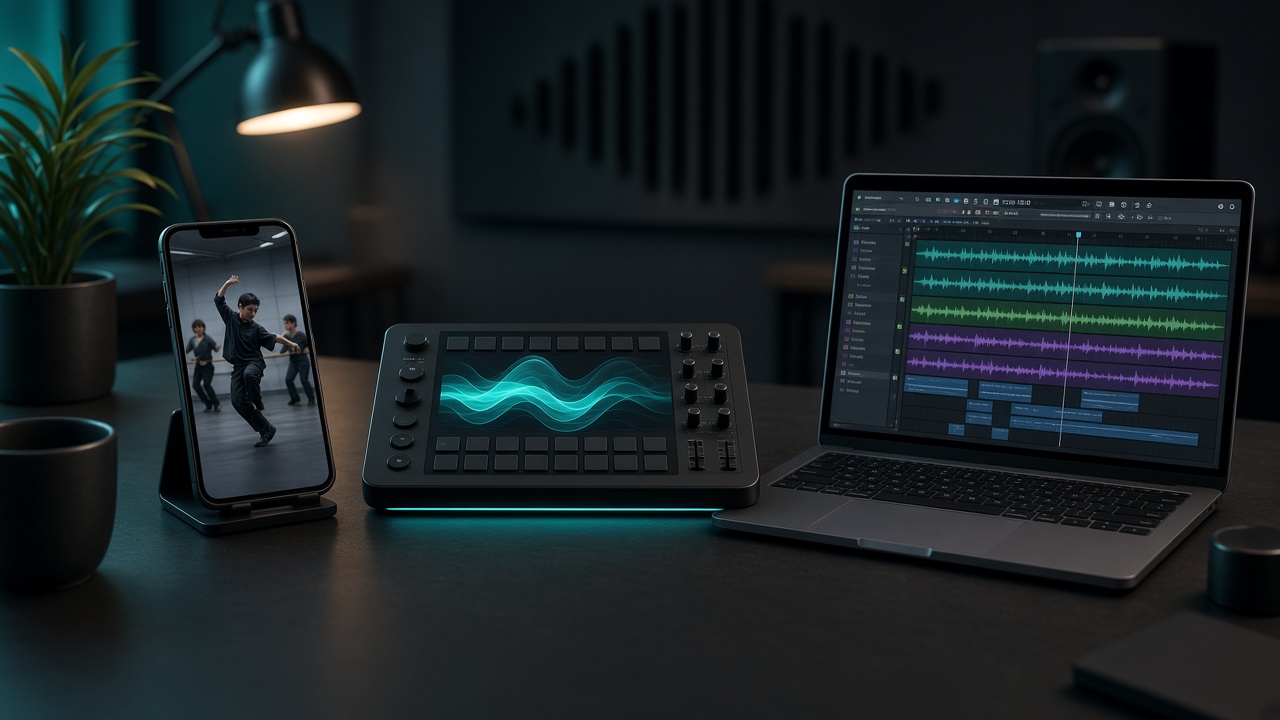
If Create already lands on the counts, deliver the tryout as-is. When you need to duck a vocal, lift the kick, or cut a 15/30-second social edit, move into Studio 2.0. The official behind-the-scenes piece states the music was made with v6 and finished in Studio 2.0. Studio is Premier-tied; open from the library, pull stems, add EQ/compression—details in the Studio 2.0 guide.
- Stay in Create: rehearsal sync, internal listen, whole-track preview only
- Open Studio: stem balance, effect chains, MIDI fills, high-quality stem export for edit
- Platform finals: lock audio in Suno; captions and transitions stay in your NLE—see the short-video BGM guide
- Commercial and plan gates: check Free vs Pro
Four delivery steps from motion to editable audio
- Pick one clear rehearsal clip (or one motion still) as the sole visual anchor
- One-line handoff: video owns rhythm; text owns genre, BPM, vocals, and hard stop
- Scout on v6-mini / v6-wild in-app, then lock on v6 once counts stick
- Open Studio only for polish: stems, effects, cutdown export—do not burn downloads on scouting
Motion inputs, model access, and Studio eligibility follow Suno’s official docs; suno.skin is an independent explainer.
Read the official behind-the-scenesCrop the clearest rehearsal hit, lock BPM and hard stop in text, then decide whether Studio is worth opening.
Start movement-to-music
Suno AI Team
AI Music Editor · Suno AI & Text-to-Music
Our editorial team tests Suno AI daily, covering product updates, prompt techniques, and real-world music creation workflows.
Related Articles


Ready to start your AI music creation journey?
🚀 Start Creating Now